
S04E02 · Build guide: Widgets, Issues, and Gathering Context Before Work: MEGA lesson
MEGA’s written guide, presented by John Lindquist, builds workspace widgets for task status and suggested memories, an issues widget, and an issue-to-work flow that gathers context before sending work to an agent.
textMEGA · hq.mega.dev · Saved Nov 19, 2026
mega course, agent orchestration, agent memory, context engineering, agent observability
Build guide for lesson S04E02 (Building Portable Agent Control Planes) of the MEGA.dev course, by MEGA: the second part of the lesson, the build step by step. The lesson's principles and its video (presented by John Lindquist) are saved separately. (MEGA Student HQ, needs a login.)
S04E02 · Build guide: Widgets, Issues, and Gathering Context Before Work
This is the second part of the lesson. It is the written version of what John builds in the video, step by step. The video is in the first part, the lesson. That part also explains the principles under the build: Configuration, Portability, Knowledge Delivery, and Operations. On this page, the notes that start with "The principle" link each build back to the lesson.
In S04E01 we kept one focused conversation, Main, and grew supporting agents such as the Critic beside it. Those agents watch Main. Yet a working day holds much more than one conversation: other panes are running, tickets arrive, a board fills up, and we keep stopping to ask what is going on.
This lesson adds widgets, small panels that watch for us and show only what matters. We build one that watches our workspace, one that suggests what to remember, and one that reads incoming issues, and then we make sending an issue to Main gather its context first.
John's workspace is Herdr and his harness is Pi. As before, every build here is described by the capability it needs, with Pi and Herdr shown alongside as one labelled example, and each build comes with a prompt to start from and a way to check it. The builds assume what S04E01 set up: a workspace with a command line for panes, such as a terminal multiplexer, and the /split, /lab and /agent commands. If we built those as shell commands or key bindings, then wherever this lesson types /lab or /widget, we run the command we built in its place.
Outline
- Shortcuts: keys for repeated commands, listing what is bound, a command bar
- Widgets: definition, a to-dos widget, a memories widget, suggesting instead of acting, ways to draw a widget, the widget command, widgets in the lab
- The Issues Widget: outside sources, code gathers and the model judges, overstated tickets, hill climbing, choosing a model, keys and menus
- From Issue to Work: the cold start, a planner and a swarm of gatherers, sources on every line, a rules file, what Main receives
Shortcuts
Let's start with a quick tip. By now we run a few commands over and over, such as /split, /lab, or the command that opens a supporting agent. Our harness or our workspace almost certainly lets us put a key on each of them, so the first thing worth asking for today is a shortcut.
The request is short, and it works best when our agent runs inside the cloned repository of our harness or has its docs in reach, as in S04E01. We can send it like this, replacing the bracketed name and the keys:
Read the keyboard shortcut docs for [my harness] and [my workspace] first. Assign [one key] to /split and [another key] to /lab. Before you bind anything, list the shortcuts that are already bound and tell me if either key is taken or would be swallowed by my terminal. If [my harness] cannot bind a key to a custom command, bind it in [my workspace] instead, so that it types the command into Main's pane or runs my shell command for it, and tell me which one you used. Give each binding a short description if the tool can store one.If we are not sure which keys are free, we can let the agent choose:
List every keyboard shortcut that is already bound in [my harness] and [my workspace], then suggest three free ones for the commands I run most often.Pi and Herdr: John asks for it in one line from inside his harness repository: "Please assign the Option 1 keyboard shortcut to /split or Option 2 to /lab", or however we want to organize it.
In Pi, /hotkeys lists every shortcut that is already bound, and the Pi keybindings reference describes the keybindings.json file for Pi's own actions. A key for a command of our own is registered by an extension, as covered in the Pi extension docs.
If something is missing:
- The harness has a keybindings file: in Claude Code, for example, custom keybindings can bind a key to
command:<name>, which runs the command of that name. - The harness cannot bind keys to commands: we can bind the key in the workspace instead, such as
bind-keyin tmux or the keybindings of Zellij, and have it type the command into Main's pane, or run the shell command we built in its place. - Plain terminal tabs: a key cannot reach another tab, so, as in S04E01, we start Main inside a terminal multiplexer first.
Done when: pressing the key runs the command, and wherever our tools list their shortcuts, the new key is listed with a description of what it does, or, where they cannot store one, it is named in the command's help. That way the shortcut is documented where we look for it and we do not have to memorize it.
If we want to push the idea further, John suggests a challenge: a command bar that opens over the workspace with a searchable list of our commands and a short history of the recent ones. We can start it with this prompt:
Read the docs for [my harness] and [my workspace] first. Build me a command bar that opens over [my workspace] with one key. It lists the commands I have built, such as /split, /lab and /agent, lets me filter the list as I type, keeps the ones I used most recently at the top, also offers the other things I do often in [my harness] and [my workspace], and runs the selected command when I press Enter. Tell me plainly if [my workspace] cannot draw over its panes, and offer the closest thing it can do, such as a popup window or a small pane that closes after I choose.The point is not the bar itself. It is that everything we do often, from the harness up to the workspace and our external tools, can sit a couple of keystrokes away.
Widgets
How often do we ask "what's going on?" in our own workspace? We lose track of Main, of the other sessions that are running, or of an external tool we need to check all the time. Asking Main for a status adds a tangent to Main, which is exactly what we set out to avoid.
So let's add widgets. John defines a widget as an intelligent visualization of critical information. It gathers from our project and our tools, and then, as he says, slaps a model with some judgment on top. The gathering can be a script or a call to an MCP server that fetches a status from somewhere. The widget brings it together and presents exactly what we need to see, in a form we can read at a glance.
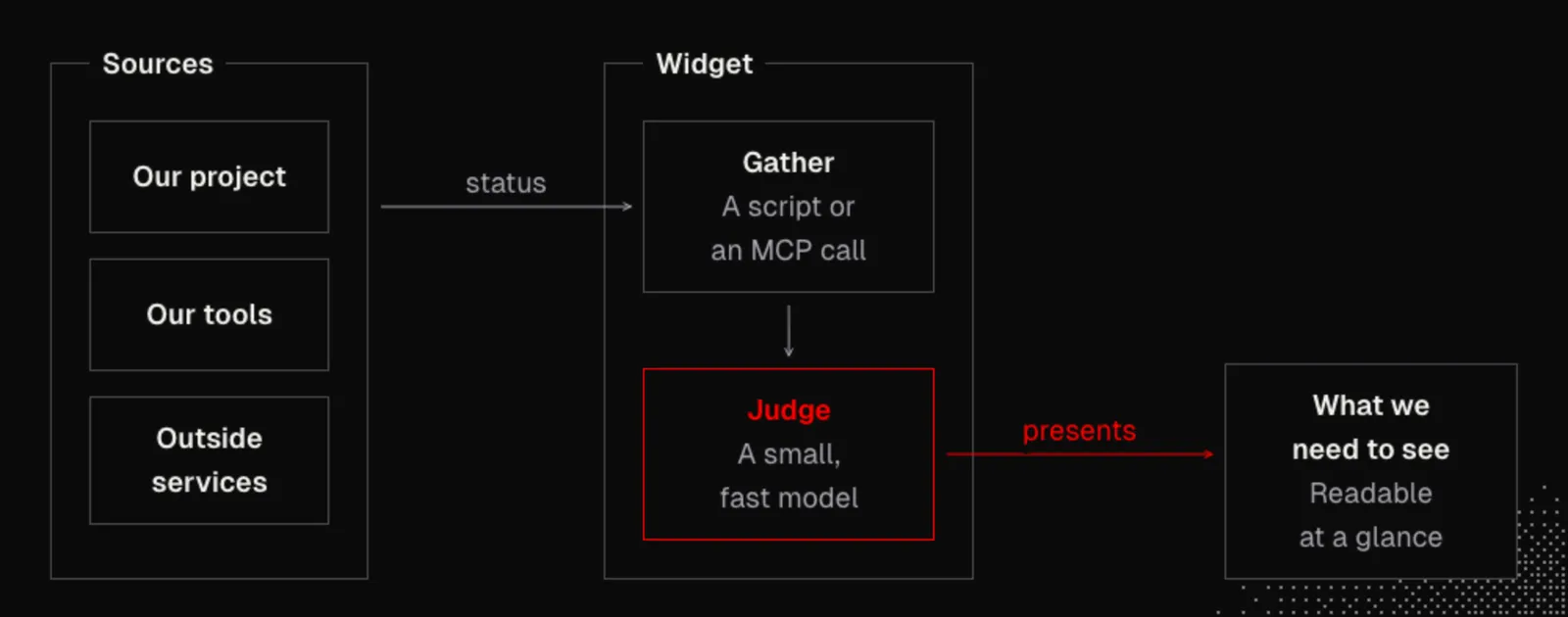
Let's start with everyone's favorite app to build, a to-dos widget. The nice thing about this one is that it can watch every conversation in our workspace, or more specifically, in John's case, every conversation in the space he has in focus (a space is Herdr's name for one group of panes). When new text streams into one of the panes, a small, fast model reads it and presents what the agent is doing, what is done, and what is waiting on us.
We look over and see the active task, or a decision that blocks it, and we do not update the list by hand. It is mostly a reflection of what we prompt for and what the agent answers.
Right underneath it we can build a second widget, Memories. Whenever we type a new prompt, such as "Keep all money in integer cents", the widget's model looks at the prompt and decides whether it holds something worth saving. If so, it suggests a memory. When we click Keep, or press a shortcut, the widget writes that one line to a memories file in the project.
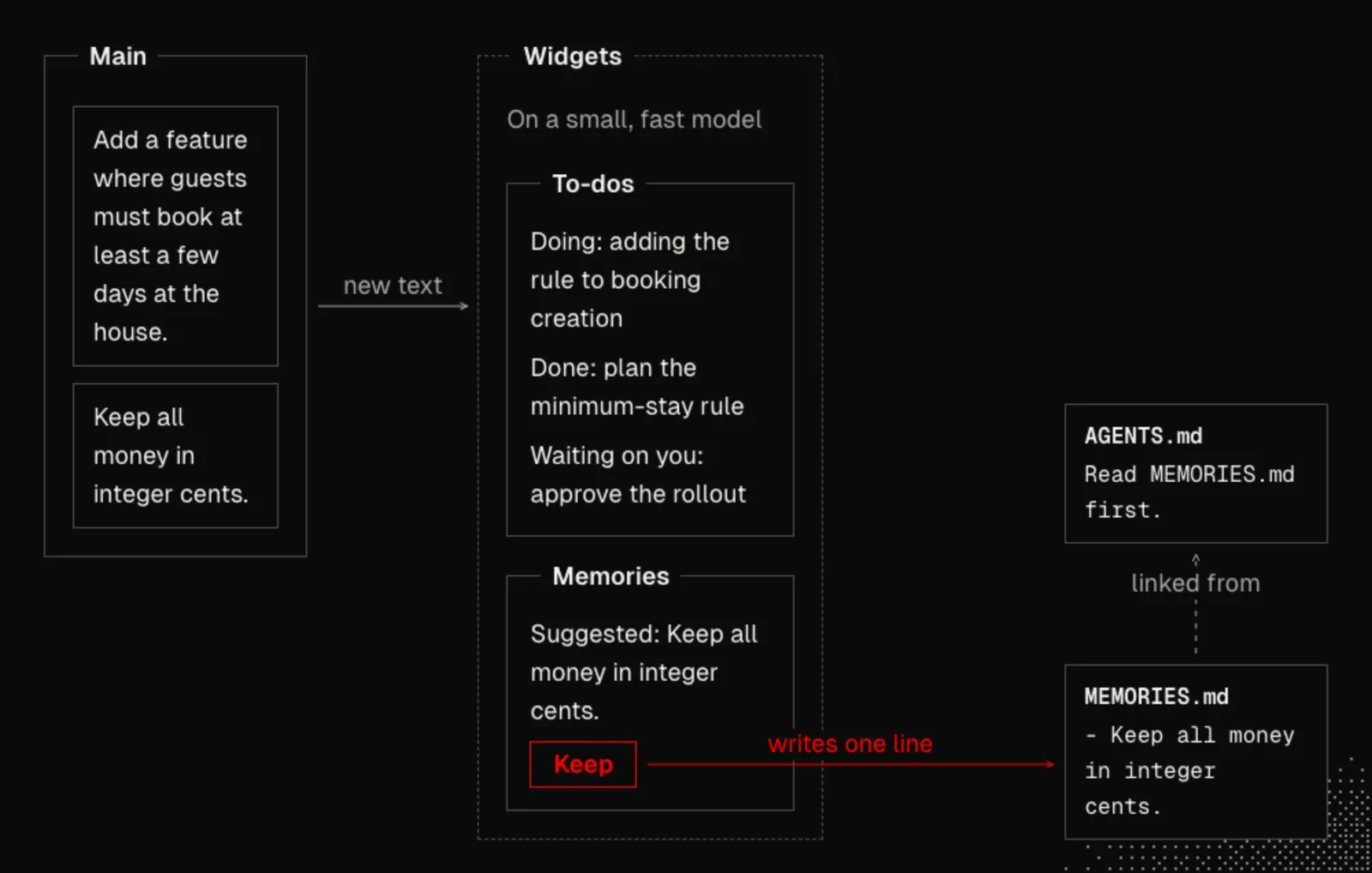
The memories file pays off when it is linked from AGENTS.md, the instructions file many harnesses read at the start of a session and which agents.md describes. With one line there, every new conversation in the repository starts with our curated list of memories:
Read [MEMORIES.md](MEMORIES.md) first.In Claude Code the same idea is an import line in CLAUDE.md, @MEMORIES.md, described in how Claude remembers your project, and Codex reads AGENTS.md directly.
There are a million memory solutions for AI agents, and as John notes, the benchmarks for how well they perform are all over the place. The key to this one is modest: nothing happens automatically other than suggesting which memories we might want to keep. The suggestion appears off to the side, where it does not bother Main, we can get around to it later, and it stays at our discretion whether a memory is important enough to keep.
John's workspace draws these widgets with its own UI kit. Herdr ships with a UI system for native components: we describe the buttons, switches, and lists in JavaScript, and Herdr draws them, which its layouts and mods guide describes. If our workspace has no such kit, there are other ways to reach the same result:
- An extension or plugin system: most workspaces have one, such as Zellij plugins.
- A web page: a small dev server and a page, shown in a browser or in a pane that can render one.
- A terminal user interface: as a last resort, a program left open in a pane, built with one of the many libraries for it, such as Ink, Bubble Tea, Textual, or Ratatui.
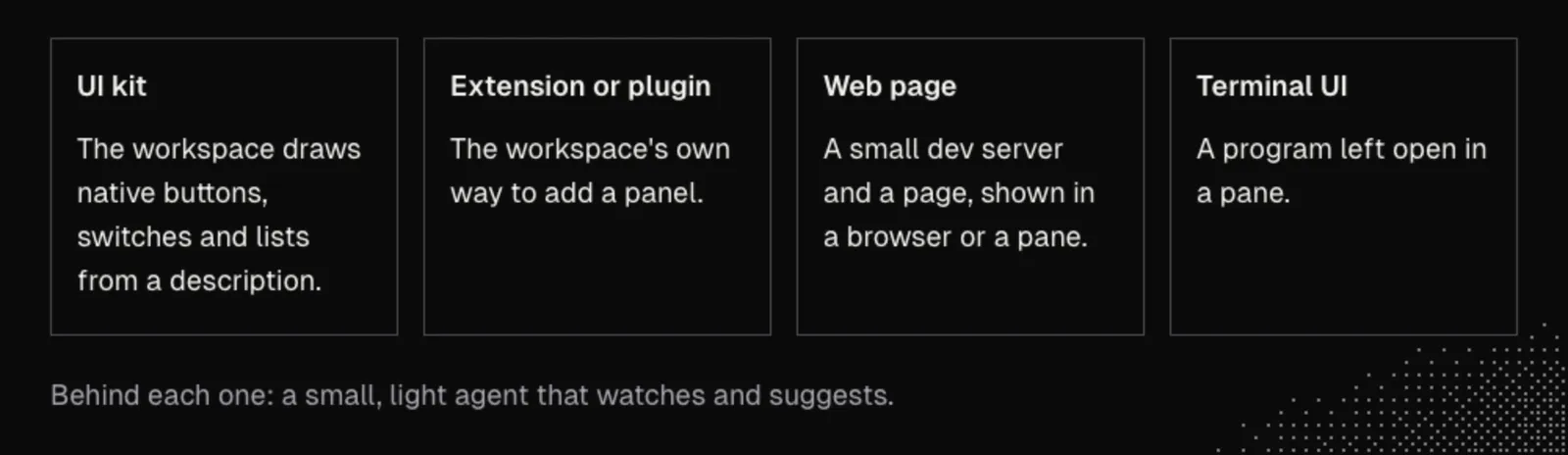
There is no right or wrong choice here. What matters is the concept: a small, light agent watches all of our decisions, and later we decide whether those decisions are worth writing into our codebase.
To streamline making widgets, we build a command for them the same way we built /agent in S04E01. We ask our agent for a /widget command, and a widget is then described by four things: its name, where its data comes from, which model judges it and what that model looks for, and what we can do with each item in its list.
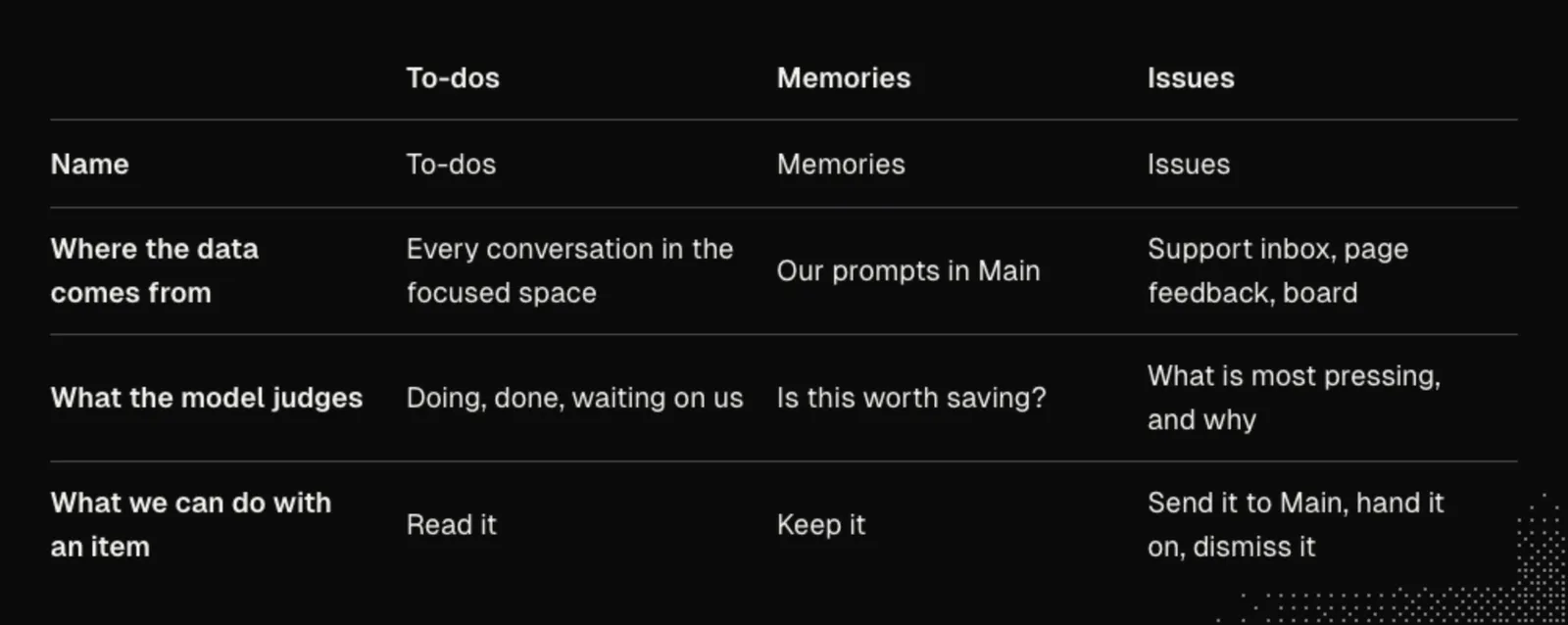
What it needs:
- A surface: a UI kit, or one of the three alternatives above, to show a small panel beside Main and keep it there.
- A source: a script, a command line, or an MCP call that plain code can run to fetch the data. For a widget that watches conversations, this is the capability from S04E01 to read a conversation's transcript or a pane's text.
- A model call: a way to run a small, fast model on the gathered data without opening a conversation, such as
claude -pin the Claude Code CLI reference orcodex execin the Codex CLI reference. - An action: a way for a click or a key on an item to do something, such as writing a line to a file or sending text into Main.
We can send this prompt to our agent, replacing the two bracketed names with our own tools:
Read the cloned repositories or official docs for [my harness] and [my workspace] first. Report any missing capability plainly instead of faking it, and show me a real panel, not a simulation.

Build me a /widget command that makes small panels beside Main in [my workspace]:
1. /widget new <name> takes my description of the widget and asks me for anything it leaves out, each time with a suggested answer: where the data comes from, what the model should judge about it, which model to use, and which thinking level if [my harness] has one (default: a small, fast model), what I can do with each item, and how often to refresh. It saves the settings in widgets/<name>/ in this project, with the model's instructions in a file of their own, instructions.md. /widget open <name> shows a saved widget beside Main and keeps it there, and /widget close <name> removes it.
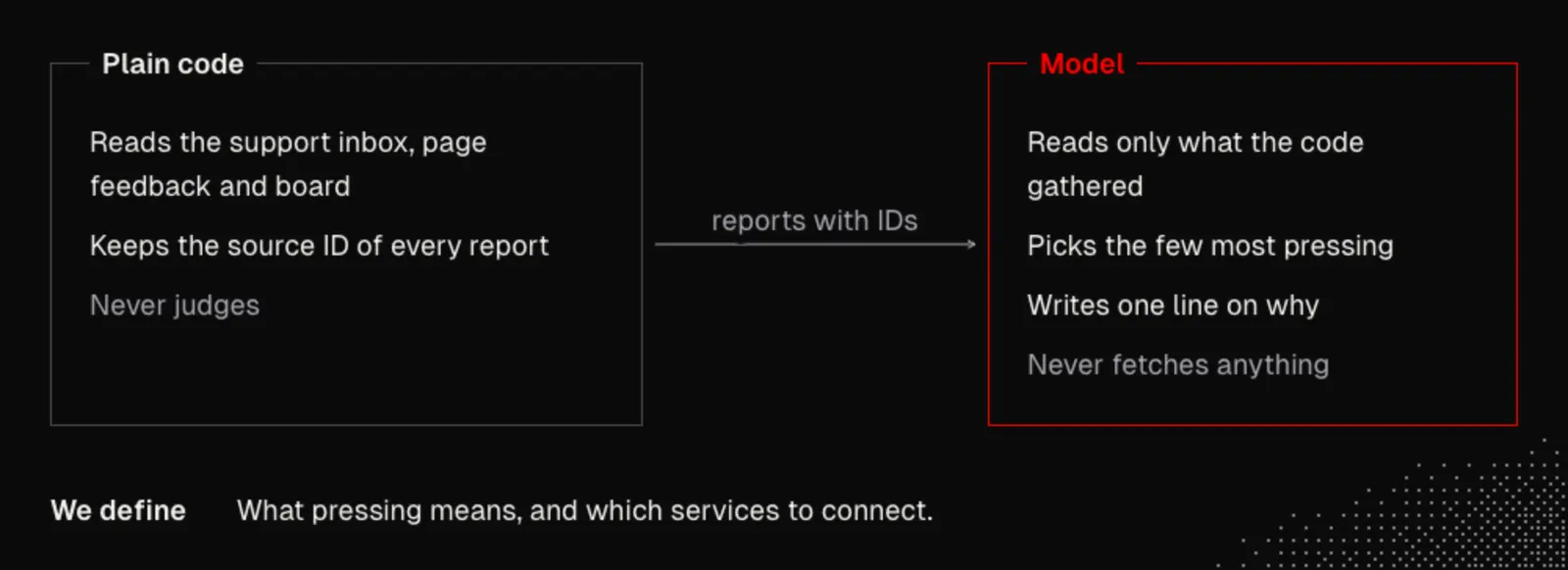
2. Plain code gathers the data: a script, a command line or an MCP call. The model never fetches anything itself. It only reads what the code gathered and writes what is shown.
3. Draw the panel the way [my workspace] supports best: its UI kit, an extension or plugin, a web page served locally, or a terminal UI left open in a pane. Tell me which one you chose and why.
4. Nothing a widget suggests is applied on its own. Every change to a file or message to Main happens only when I click or press a key on an item.
5. Creating, opening or refreshing a widget must never add a turn to Main. If a custom command in [my harness] is itself a message to the model, or cannot take arguments, make /widget a shell command or a [my workspace] key binding instead.
6. A widget can read its data from a saved sample file instead of the live source when I ask, so the same data can be checked again and again.
7. Every widget has a refresh action that gathers and judges again right now, from the saved sample when the widget was opened on its sample. Show the keys for the selected item and for refresh right under the list, and have the command's help print a full guide and the bare command list my widgets.
Pi and Herdr: John describes his own request in a few parts. Written out as a prompt, they are:
# The /widget command
/widget <name>
Where the data comes from.
Which model it should use to judge.
What you can do with each item in the list.
Please make it intuitive.
A request can be this short when the agent has the repositories of the harness and the workspace on disk to read. John's own To-dos and Memories widgets are not available to download, so we start ours with the two requests below. Each one is a prompt for our coding agent, best sent in a split so Main stays clean. First the to-dos widget:
Use our widget command to make a new widget named todos.
Data: every conversation running in [my workspace], read as it changes.
Judge: for each conversation, one card with what it is doing, what is done, and what is waiting on me.
Items: read-only. Put a card that is waiting on me at the top.
And then the memories widget:
Use our widget command to make a new widget named memories.
Data: each prompt I type in Main, read the way /agent reads Main's conversation.
Judge: does this prompt state a rule or decision that every future conversation in this project should start with? If not, show nothing.
Items: Keep writes the memory as one line to MEMORIES.md in this project. Dismiss removes the suggestion. Never write without my Keep.
If something is missing:
- No way to draw a panel: we can leave a terminal UI open in a pane beside Main, which every multiplexer supports.
- No transcript or event stream to watch: we can read the visible text of each pane on a timer, such as
capture-panein tmux ordump-screenin Zellij, and send only what changed to the model. - No headless model call: we can run the widget's judge as a supporting agent in a pane of its own, built with /agent, and have the widget show that pane's latest answer.
A widget goes through the lab like every other tool. We toss it into the lab so that it is hidden away inside a black box: the lab installs the widget in its own workspace, never in ours, and checks what shows up. We start from a hello world, a very basic version of the widget, and evolve the behavior there until it is the exact thing we need. We can ask our agent to extend the lab for this:
Extend the lab so it can test a widget: /lab test <name> also accepts a widget in widgets/<name>/.
1. It installs and opens the widget in the lab workspace only. A widget that reads an outside source reads its saved sample there, never the live source.
2. It carries out the Do lines from widgets/<name>/expectations.md. The name in brackets is Main or the widget's name. A Do line for Main is typed into the lab's Main. A Do line for the widget says in plain words what to do on it, such as "refresh", "Keep" or "select the first issue and send it to Main", and the lab agent does it with the widget's own keys or buttons.
3. It waits until the widget is quiet, and has the lab agent judge the Expect and Never lines from the text the widget and Main show, and from whether any project file changed.
4. The lab agent may read the saved sample to check what the widget shows against it. It never reads instructions.md.
5. A flag sets the widget's model for one run without changing its settings.
6. Save the report under widgets/<name>/reports/ in my real project.
The expectations file follows the form from S04E01. For the memories widget, for example, we can save this as widgets/memories/expectations.md:
# Memories widget expectations

## Suggests a rule
Do (Main): Keep all money in integer cents. Reply in one sentence.
Expect (Memories): suggests one memory that states the rule about integer cents, with a Keep action
Never (Memories): writes to MEMORIES.md before Keep is pressed

## Keep writes one line
Do (Memories): Keep
Expect (Memories): shows the memory as kept, and MEMORIES.md in the lab's project copy has gained exactly one line with the rule

## Stays quiet on small talk
Do (Main): Thanks, that looks good. Reply in one word.
Never (Memories): suggests a memory
The to-dos widget gets a file of its own, widgets/todos/expectations.md. In the lab it watches the lab's Main, which is enough to check the card:
# To-dos widget expectations

## Shows what Main is doing
Do (Main): Plan a minimum stay rule in three steps, then stop and ask me which step to start with.
Expect (Todos): shows one card for Main that names the plan and marks it as waiting on me
Never (Todos): shows a step as done that Main has not reported as done
Done when: in the lab, a prompt with a rule produces one memory suggestion and a prompt without one produces none, the memories file changes only after Keep, the to-dos card shows what the lab's Main is waiting for, and Main shows no extra turn from either widget.
Once the widgets graduate from the lab, meaning their reports come back clean, we open them in our daily workspace with /widget open, pin them to the side, and let them watch what we are doing.
One benefit shows up quickly. We can stop writing the prompts we are used to writing in Main when we lose track, such as "please explain like I'm five", "use bro talk", or "write a summary". The to-dos widget keeps us up to date, and the memories widget holds our decisions.
The principles: a widget that lives in a project folder is Configuration. A build that is described by the capability it needs is Portability at a small scale.
The Issues Widget
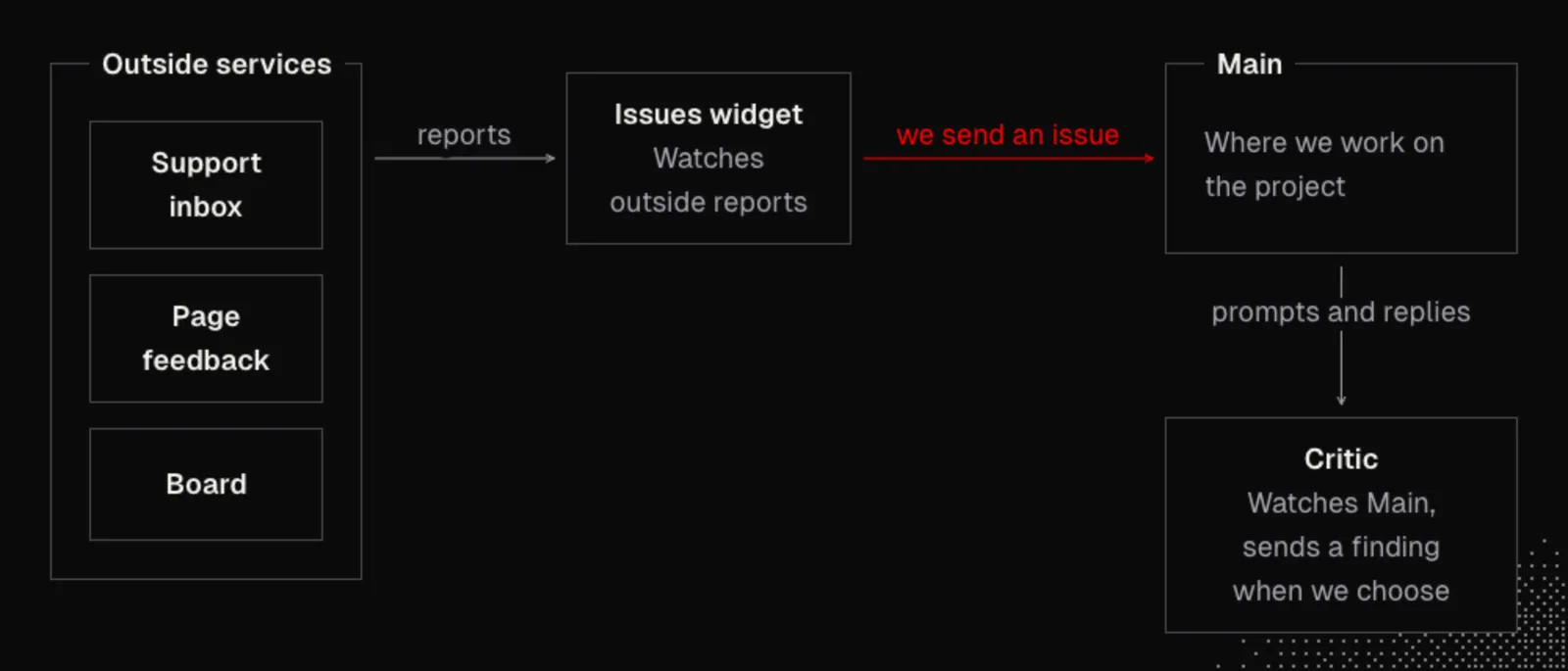
Now that we are watching our workspace, how do we watch things that happen in the outside world? Most work does not begin in Main. It begins with a support request, a piece of feedback, or a card on a board, and somebody has to triage all of it before any of it reaches a conversation.
In John's sample project, RentAPlace, there is a support inbox, page feedback, and a board of cards. That is a massive amount to read every single morning, so we build a widget that reads them all for us. With his own command, John types /widget issues in the main conversation and tells it what we want: read the support inbox and the board, pick the few most pressing with one line on why, keep the source ID for everything, and then give us the key points for what to do next.
On a project of our own, the sources are whatever we triage from. With the GitHub CLI, for example, gh issue list and gh pr list are sources plain code can call. We can send this request, replacing the bracketed part:
Use our widget command to make a new widget named issues.
Data: [my sources, for example: open GitHub issues via gh, the support inbox export, the project board]. Plain code gathers every item and keeps its source ID.
Judge: pick the few most pressing, at most five, each with one line on why and the IDs of the sources it comes from. List everything else below them without comment.
Rules for the judge: say only what the sources say. Drop any item whose ID is not in what the code gathered.
Items: copy, send to Main, start a new Main with it, dismiss.
Also save a sample of today's items from every source to widgets/issues/sample.json, with their IDs, so the widget can be checked against the same data again.
Here is what makes the widget trustworthy. Plain code gathers the reports, and the model only judges. The code saves our agent the time of looking for everything itself, and it cannot invent a ticket. Once the data is back from the various services, the model decides what is pressing and writes the line on why. What "pressing" means, and which services to connect, is ours to define.
Then we toss the widget into the lab and judge it: does it pick the most pressing issues, are the reasons good, do the sources match, and does it give us everything we need to act? This is where reading closely pays off. John's example comes from RentAPlace: if we read the top line closely, we might find a ticket that asks "When will the refund show up?", while the widget says "Four guests report missing refunds."
That's not what they said. They asked when, and nobody said anything was missing. A summary that overstates its source is worse than no summary, because we act on it.
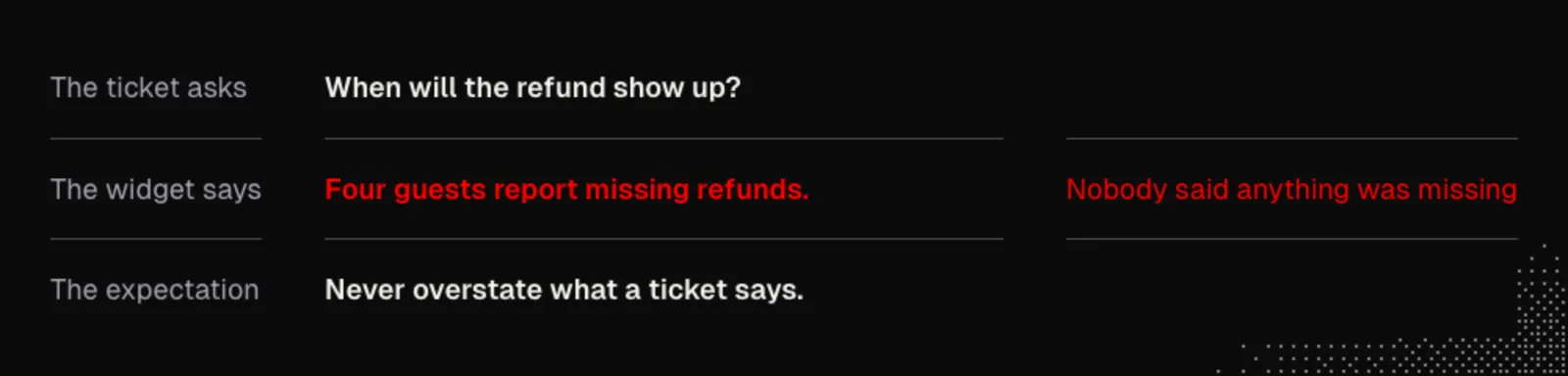
So we get our expectations down, especially rules such as "never overstate what a ticket says" and "avoid interpretation". For a widget that reads outside data, it's worth testing against the saved sample of the sources, so every run reads the same tickets and the reports can be compared. We can save a file like this as widgets/issues/expectations.md, replacing the details with our own:
# Issues widget expectations

## Picks the most pressing
Do (Issues): refresh
Expect (Issues): lists at most five issues as most pressing, each with one line on why and at least one source ID
Never (Issues): shows a source ID that is not in the saved sample

## Says only what the sources say
Do (Issues): refresh
Expect (Issues): every why line is supported by the text of the sources it cites
Never (Issues): overstates what a ticket says, for example turning a question into a complaint
Never (Issues): adds a count, a cause or an urgency that no cited source states
Then we run it through the lab again. When the report shows failures, the rule from S04E01 holds: we change the widget's instructions instead of the expectations. As we change the instructions, we can start eliminating the failures. John names a few changes worth trying: telling the widget to use plain category words, loading our glossary or our domain-driven design documents so it is more in sync with our terms, and making sure that what it pulls from the cards stays in the cards' own words.
We can stay in that loop ourselves, or we can ask a smart agent to hill climb for us. Hill climbing means we change one thing, run the same check, and keep the change only if the score improves. We can hand it over with this prompt:
Read the latest report in widgets/issues/reports/. Change one thing in widgets/issues/instructions.md that should remove a failed line, run /lab test issues against the saved sample, and keep the change only if fewer lines fail. Repeat until every expectation passes twice in a row or five changes in a row do not help. Never edit expectations.md. Show me each change with the number of failures before and after.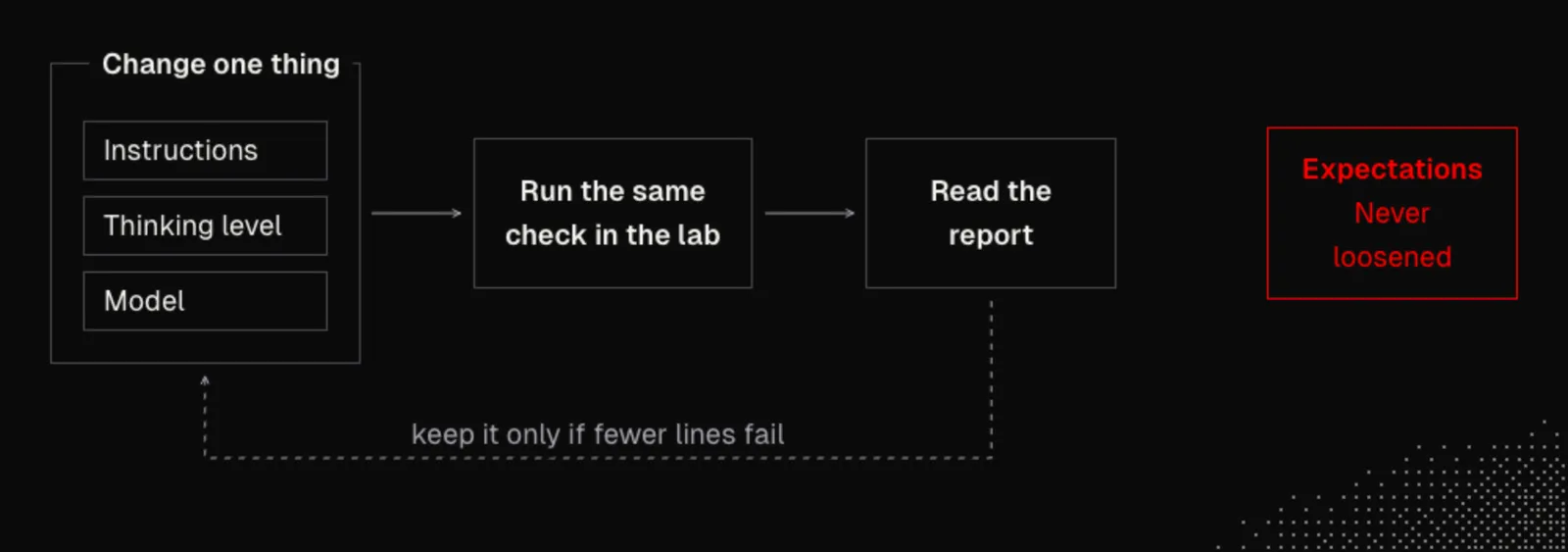
The instructions are not the only setting. John tested one more in his own run: on a small, fast model like Haiku the widget overstated tickets again and again, and when he switched to a somewhat larger model, those failures went away.
So there is a trade-off to make. If a small model keeps failing, we can bump up its thinking level (how much reasoning the model is allowed before it answers, where our harness has such a setting) or bump the model up a little. The question is how much time we want to spend iterating to get the small, fast model working.
Because the check is automated, we do not have to guess. We can ask our agent to run it for every model we have access to:
Run /lab test issues once for each model I have access to, small and large, with the same saved sample and the lab's model flag. Give me a table with the number of failed lines, the time per read, and your best estimate of the cost per read for each model. Recommend the cheapest one that passes, and say what you could not measure.As always when we work with agents, there's no perfect solution. There are trade-offs, and we find what works for us.
A widget we use every morning deserves keys. John's advice is to make them intuitive by showing a legend right under the list of options. For example, in his own setup he likes Command+I to jump to the Issues pane and Escape to jump back to the main conversation.
In the pane, the arrow keys or Vim keys select an issue. From there we can send it to the main conversation, start a new main conversation with it (a fresh conversation in a new pane that begins from the issue), hand it to another agent, or dismiss it. We can even ask for a right-click menu that offers a longer list of actions on the issue under the pointer. We can ask for all of it at once:
Give the Issues widget keys: one key that jumps into it from anywhere in [my workspace], Escape to jump back to Main, arrow keys and j/k to select an issue, and one key each to send it to Main, start a new Main with it in a new pane, hand it to one of my saved agents, copy it, and dismiss it. Send to Main with the mechanism /agent already uses for findings, so it does not disturb a running reply or what I have typed in Main. Show a legend of these keys right under the list at all times. Add a right-click menu with the same actions if [my workspace] supports one. An action that is not available right now stays visible, greyed out, and says why.If something is missing:
- No way to send without disturbing Main's input: we can use the queue from S04E01, or have the widget refuse to send while Main's input holds text and say so in the legend.
- Keys the terminal swallows: we let the agent pick keys that reach the widget in our terminal, and the legend shows whatever was chosen.
Done when: on two runs in a row every why line is supported by its cited sources, no ID appears that is not in the saved sample, the legend under the list names every key, and a sent issue reaches Main with its text and source IDs the way a finding from the Critic does.
The key idea behind all of this is that most main conversations start with something that came from the outside. When the pipeline from an incoming ticket to a conversation is short, and our to-dos, memories, and other tools are beside it, we go straight from an issue into what John calls power user mode.
One note on how this differs from the Critic and the other supporting agents. The Critic watches the main conversation, while the Issues widget watches external services and reports. Both can send information to the main conversation, and Main stays the place where we interact with our project.
The principle: a change that is kept only when the same check improves is a small case of Operations: each change has a reason and a measured effect.
From Issue to Work
So we send an issue to Main, but Main gets it cold. It knows the issue and nothing around it. We could do the legwork by hand, right there in the main conversation: find the code, check the history, search for related issues. And we would do that every time.
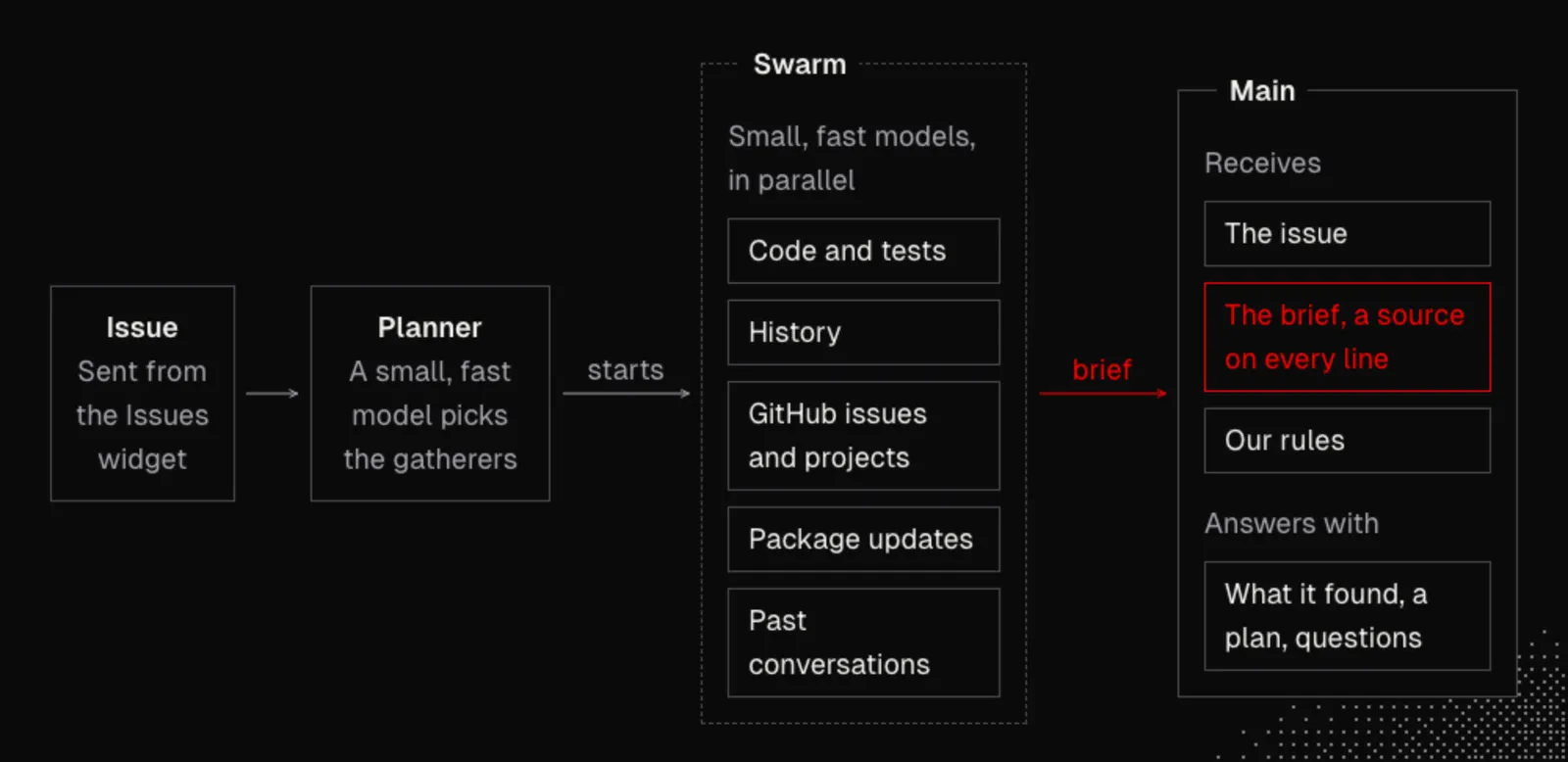
We can hand off that legwork instead. We ask our agent to make the Issues widget gather information before it sends to Main. First a small, fast model reads the issue and plans which gatherers to start. Then the gatherers go out as a swarm of more small, fast models that search in parallel, inside and outside our project. Only then does Main get the issue, together with the context around it.
What is in the swarm? John names five gatherers:
- Code and tests: one reads the code the issue touches and the tests around it.
- History: one reads the history.
- GitHub: one searches for related issues and related projects, for example with
gh search issuesfrom the GitHub CLI manual. - Packages: one checks for updates to the libraries and other packages involved.
- Past conversations: one scans our own past conversation histories to see what we decided before.
Every gatherer follows one rule: every line names its source, whether that is a file, a commit, an issue, or a conversation. And if a gatherer finds nothing, it says so. "Nothing relevant" is a totally fine answer. Like the widget itself, a gatherer should never overstate its findings.
When we trigger this action from the widget, our rules ride along with it. They live in one file, and we own it. John suggests rules like these, and we save them as rules.md in our project before building the gather step:
# Rules for working on an issue

- Find the cause before changing anything.
- Reproduce it with a failing test first.
- Give me your plan and your questions first.
- Ask before touching anything that touches money.
It is our file and our prompt, so we adapt the rules to our project. They are the general terms Main has to follow before it resolves or works on any issue.
So Main receives three things: the issue, the brief from the swarm with a source on every line, and our rules. With those rules in hand, Main does not start by changing things. It can come back with what it found, its plan, and its questions, and then wait for us. All of this comes from sending one issue from the widget to the main conversation with a single keystroke.
What it needs:
- Parallel helpers: a way to start several small, fast, read-only model runs at once and collect their answers, such as subagents in Claude Code, subagents in Codex, or several headless runs started by a script.
- Read access to history:
git logfor the files, the GitHub CLI for issues, and wherever our harness keeps past conversations on disk. - The send action: the widget's way of sending text into Main, from the previous section.
We can ask our agent to add the gather step with this prompt, replacing the bracketed names:
Read the cloned repositories or official docs for [my harness] and [my workspace] first. Tell me plainly if any capability below is missing instead of faking it.

Change the Issues widget so that sending an issue to Main gathers context first:
1. A small, fast model reads the issue and plans which gatherers to start. It may skip a gatherer that cannot help and must say which ones it skipped.
2. Start the chosen gatherers in parallel, each on a small, fast model with read-only access: code and tests, the history of the files involved, related issues and projects on GitHub through the gh CLI, updates to the packages involved, and my past conversations in [my harness]. Start them as separate headless runs, or as subagents if the gather step itself runs inside a session of [my harness].
3. Every line a gatherer returns names its source: a file path, a commit, an issue number or a conversation. A gatherer that finds nothing returns "Nothing relevant". Keep that line and the list of skipped gatherers, and remove any finding without a source before anything is sent.
4. Send Main one prompt with three parts: the issue with its source IDs, the brief from the gatherers, and the contents of rules.md from this project.
5. End the prompt by asking Main to start with what it found, its plan and its questions, and to change no files until I answer.
6. Show in the widget that gathering is running, and let me cancel it.
If something is missing:
- No subagents: a script can start the gatherers as separate non-interactive runs and wait for all of them, which works with any harness that has a headless mode.
- No access to past conversations: we can leave that gatherer out. The planner is allowed to skip one, and the brief says so.
- No widget yet: the same gather step works as a command of its own that takes an issue number, gathers, and sends the result to Main.
We can check the brief in the lab like any other output. For this check the saved sample needs at least one issue that concerns real code in the project, so the gatherers have something to find. We add expectations such as these to widgets/issues/expectations.md. Adding an expectation for new behavior is not loosening one:
## Gathers before it sends
Do (Issues): select the first issue and send it to Main
Expect (Main): receives the issue, a brief and the rules in one prompt
Expect (Main): answers with what it found, a plan and questions, and changes no files
Never (Main): receives a finding in the brief that names no source
Never (Main): edits a file before we answer its questions
Done when: one key on an issue ends with Main holding the issue, a brief in which every finding names a source, and our rules, and Main's first answer is a plan with questions and no file changes.
Why work this way? John's observation, which he calls anecdotal, is that the biggest time waster comes right at the start of a task, when we have to stop and think about all the related things before we really get going. With the swarm in front, our bigger model, which costs more, can focus on the difficult task of solving the problem instead of the easy task of finding the related material.
It is tempting to go one step further and build a custom fixer agent in the lab. John advises against it. Incoming issues have too many variables, which makes fixing them a job for us and our general main agent together. We let the swarm do the busy work, and then we sit down with the main conversation and take the time to think through the solution.
The principle: the brief that reaches the main conversation is Knowledge Delivery: the right context, pushed at the moment it is needed.
Takeaways
A workspace that keeps us asking "what's going on?" is a workspace that pulls tangents into Main. A widget keeps the answer in view before we ask: plain code gathers the facts, a small, fast model adds judgment, and the result sits beside Main in a form we can read at a glance. The to-dos widget reflects our conversations, and the memories widget suggests what to keep and writes nothing until we say so.
The Issues widget turns the same idea toward the outside world. It reads the inbox and the board for us, and the lab holds it to written expectations such as never overstating what a ticket says. When it fails, we change its instructions, its thinking level, or its model, and never the expectations, and because the check is automated we can measure that trade-off instead of guessing it.
Finally, sending an issue to Main gathers context first. A planner and a swarm of small, fast models collect the code, the history, related issues, package updates, and our past decisions, with a source on every line, and our rules ride along. Main starts with the context it needs and answers with a plan, and the fixing stays with us and our main agent, where the judgment is. Shaped this way, our tools and agents surface what we need just in time.